
Add Hibira to Claude and ChatGPT: custom connector setup
Step by step, with screenshots: add the Hibira MCP server to Claude or ChatGPT as a custom connector, approve it in your browser, and use it in a chat to create apps, check usage and watch the debug console.
MCP server URL
https://hibira.io/mcpClaude and ChatGPT reach the Hibira MCP server through a custom connector: you paste the server URL once, approve the connection on a Hibira page, and then ask for things in plain language. You need a free Hibira account. The screenshots were taken in October 2026 in the Traditional Chinese interface of each app; menus change from time to time, so look for the same words if yours differ.
Claude
Custom connectors work in Claude on the web and in the desktop app, on every plan. The Free plan allows one custom connector.
- Open Customize › Connectors, then select Add › Add custom connector at the top right.
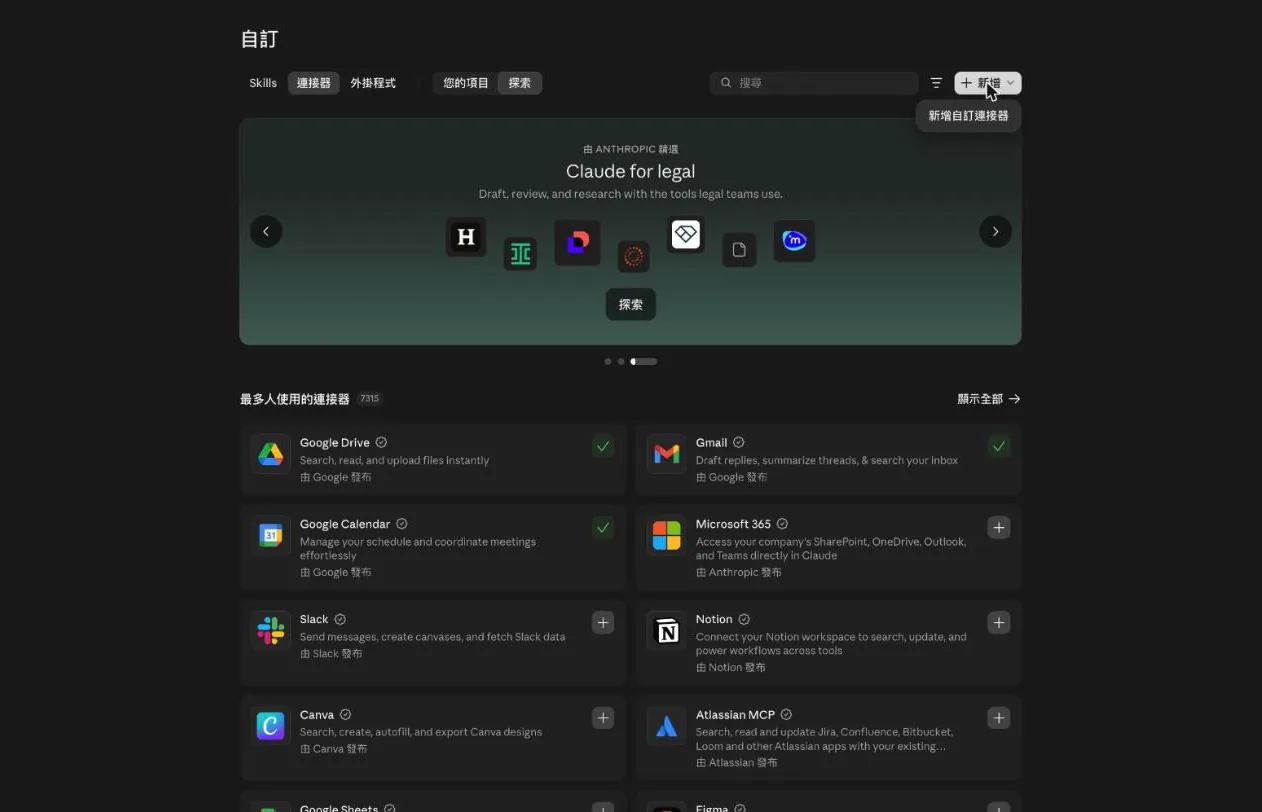
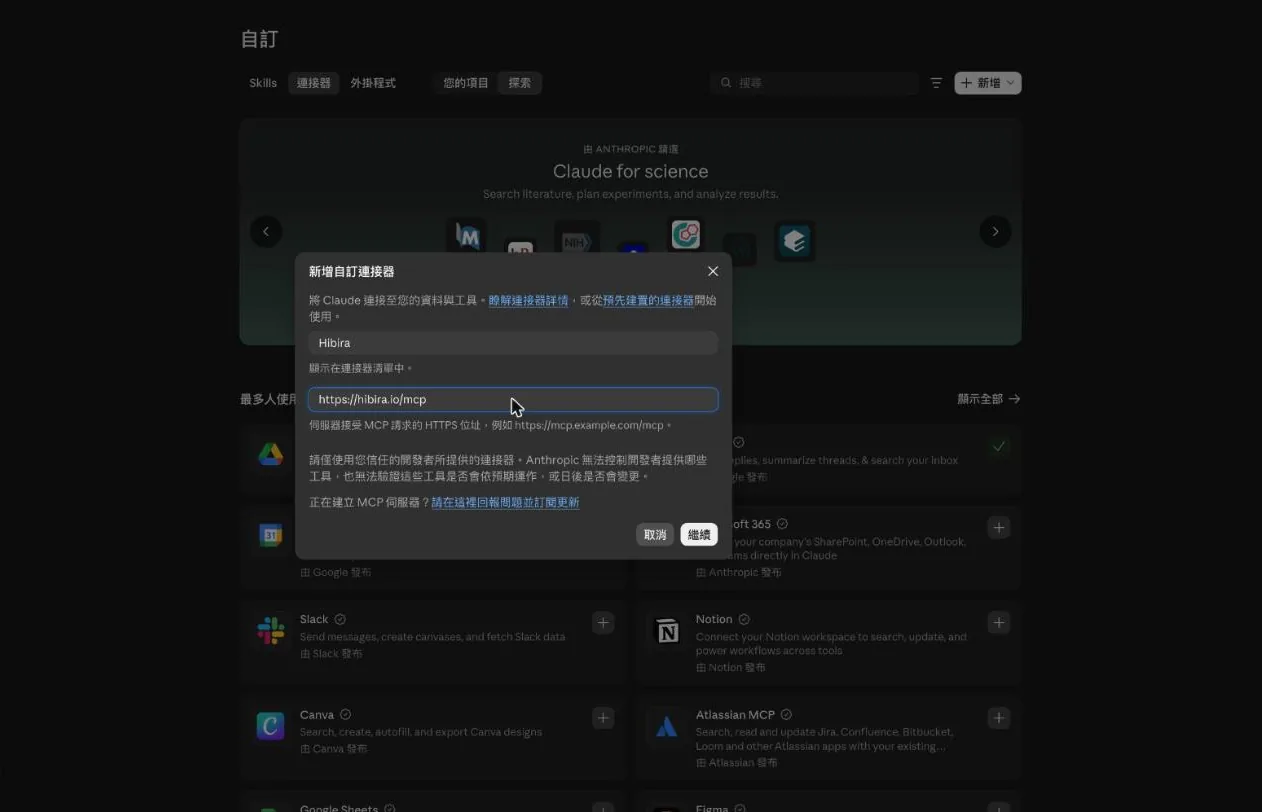
- Enter Hibira as the name, paste the MCP server URL above,
https://hibira.io/mcp, and select Continue.
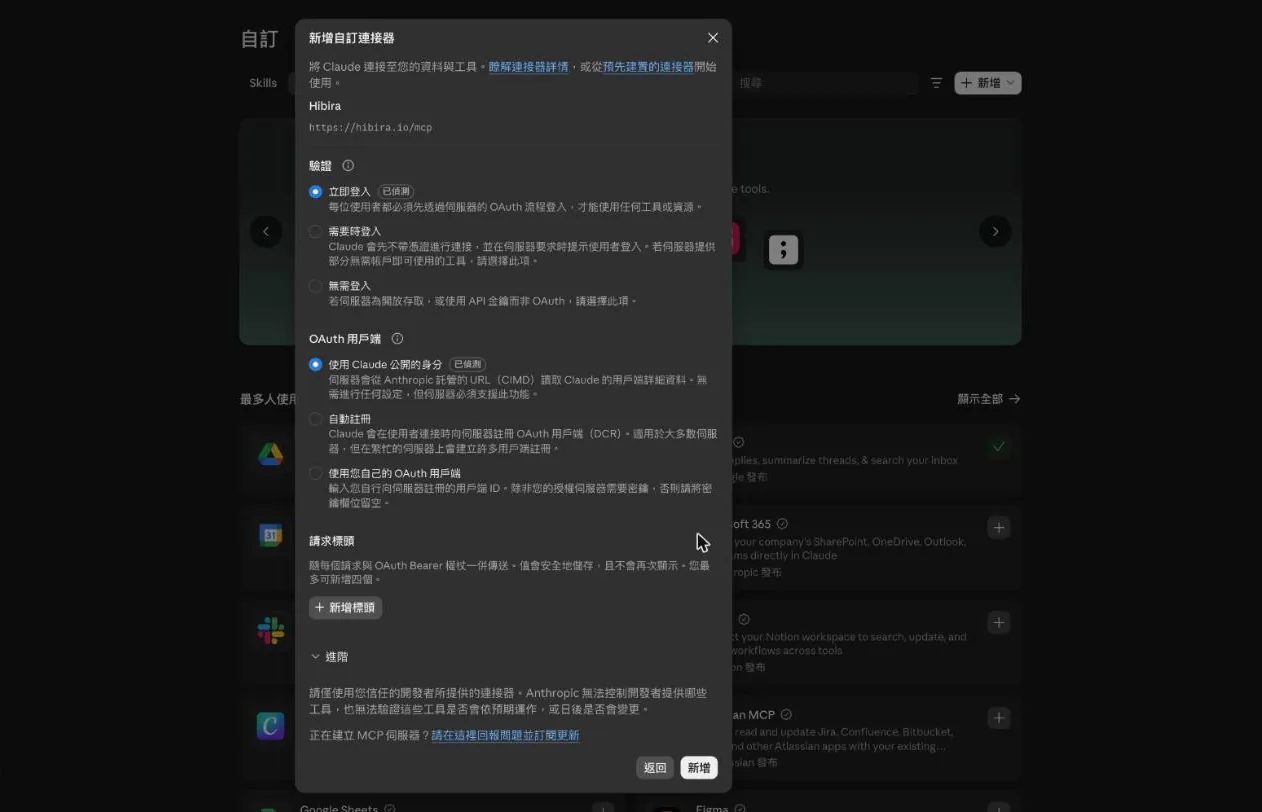
- Claude checks the server and shows how it signs in. Keep the detected defaults, Sign in now and Claude's published identity as the OAuth client, and select Add.
- Select Connect. A Hibira page opens: sign in, decide whether Claude may also make changes, and select Allow (the section Approve the connection below shows that page). Back in Claude, the connector lists Hibira's tools, and you can choose for each one whether Claude runs it freely, asks first, or never uses it.

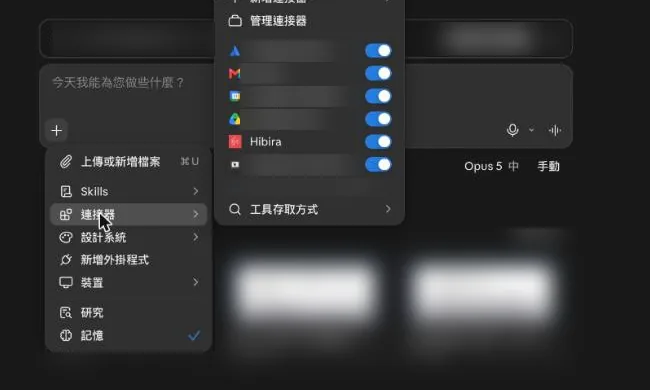
- In a chat, select + › Connectors and make sure Hibira is on. Then ask, for example, “List my Hibira apps and today’s usage.”
On a Team or Enterprise plan, an Owner adds the connector for everyone in Organization settings › Connectors (Add › Custom › Web, then the same URL). Each member then finds Hibira under Customize › Connectors with a Custom label and selects Connect to sign in with their own Hibira account.
ChatGPT
ChatGPT adds custom MCP servers on the web, as a plugin. The screenshots are from a Plus account; Business, Enterprise and Edu workspaces support it too, though an admin may have to allow it first. If you do not see the option, your plan or workspace does not offer it yet.
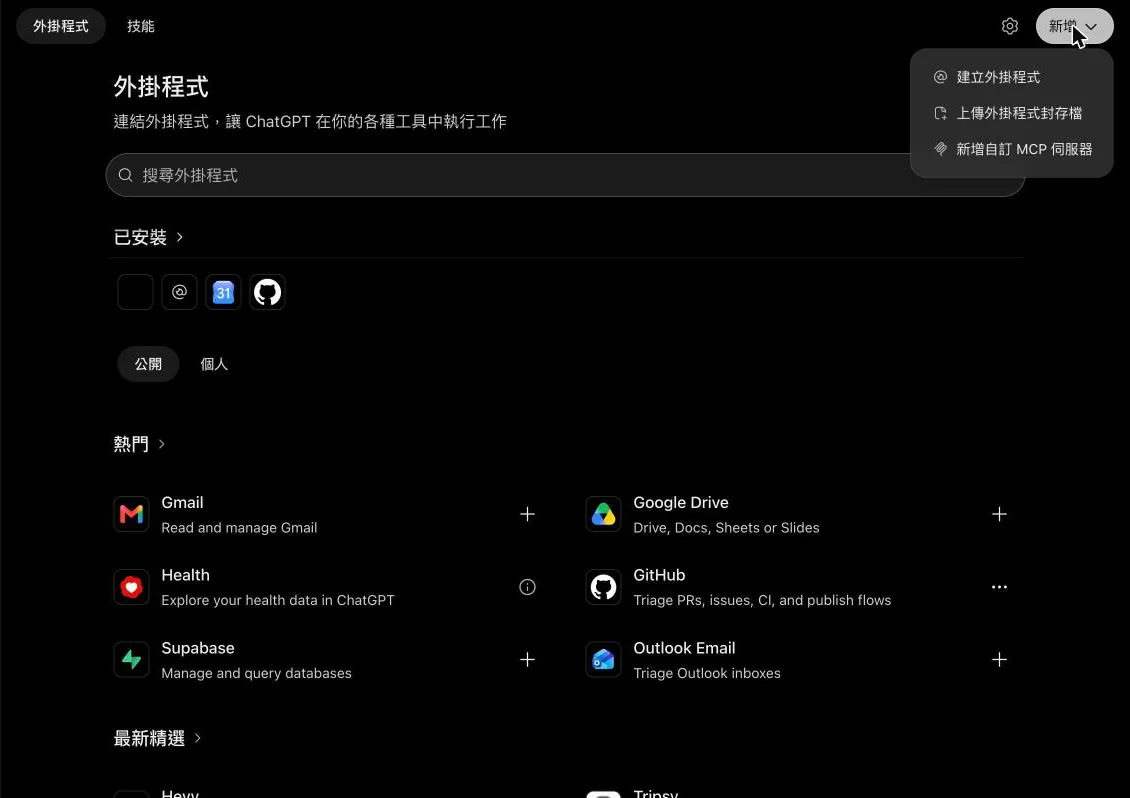
- Open Plugins in the sidebar (chatgpt.com/plugins), then select New › Add custom MCP server at the top right.
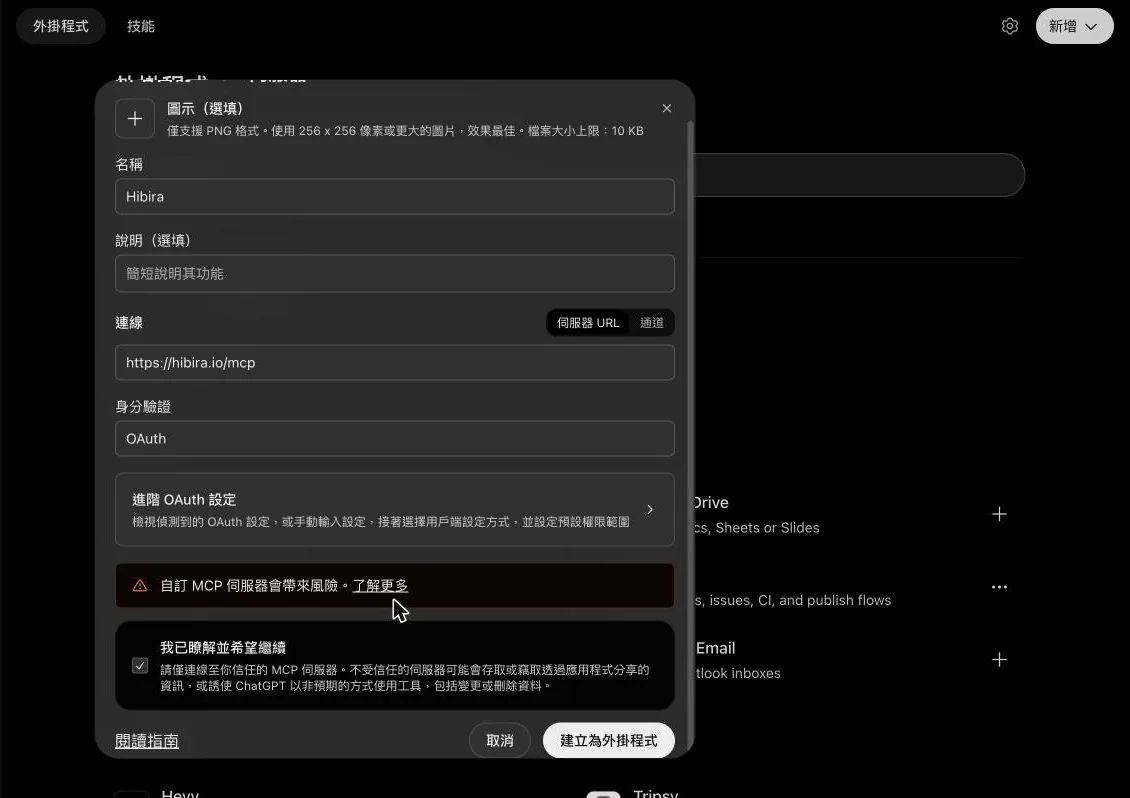
- Enter Hibira as the name and paste
https://hibira.io/mcpunder Connection as the Server URL. Keep OAuth for Authentication and leave Advanced OAuth settings alone. Read the warning, tick I understand and want to continue, and select Create as a plugin.
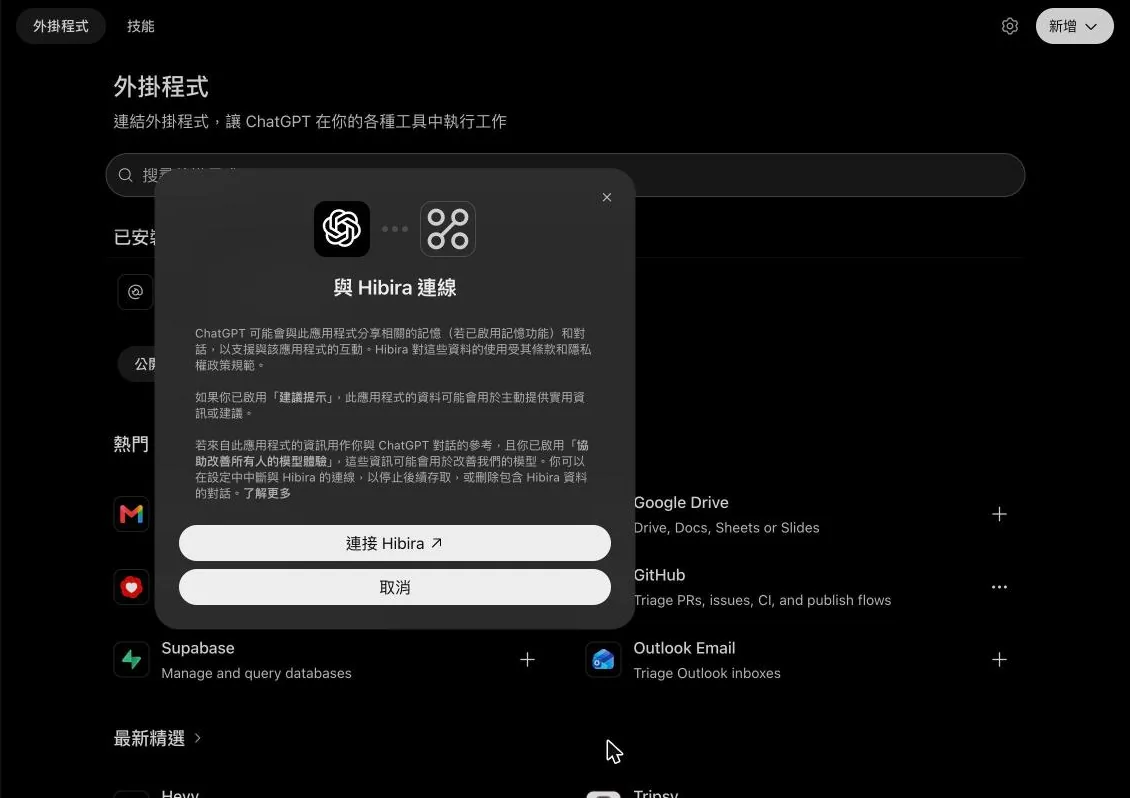
- ChatGPT explains what the plugin can see. Select Connect Hibira. A Hibira page opens: sign in, decide whether ChatGPT may also make changes, and select Allow. The section Approve the connection below shows that page.
- In a new chat, type @, pick Hibira, and ask, for example, “@Hibira create a staging app that only accepts connections from localhost.” ChatGPT asks you to confirm before it runs a tool that changes something.
Older ChatGPT accounts may still show the earlier flow: turn on Developer mode under Settings › Apps & Connectors › Advanced settings, then select Create on the same page and fill in the same name, URL and OAuth.
Approve the connection
The first time Claude or ChatGPT connects, it opens this Hibira page. Sign in with your Hibira account if you are not already. The connection can always read your account, plan, apps, usage and debug console. When the tool asks to make changes, Allow changes is ticked: leave it ticked to let it create and change apps and send test events, or untick it for read-only access. Then select Allow. You go back to Claude or ChatGPT, and the connector is ready.

App secrets are shown once, when the connector creates an app, and no tool reads them back. Every connected tool is listed on the AI agents page of your account, where you can disconnect it at any time.
Troubleshooting
- The option to add a connector is missing. In Claude on a Team or Enterprise plan, only an Owner can add one; on Free, remove your other custom connector first. In ChatGPT, custom MCP servers depend on your plan and, in a workspace, on your admin.
- The Hibira page says the sign-in request is not valid. Remove the connector, add it again with the URL exactly as above (
https://hibira.io/mcp, no trailing slash), and connect again. - The connector is added but the tools are not used. In Claude, check that Hibira is switched on under + › Connectors in that chat. In ChatGPT, pick it with @, or name it in your request.
- It can read but not create apps. You connected with read access only. Disconnect it on the AI agents page, connect again and tick Allow changes.
- You use Claude Code, Cursor or VS Code. These add the server from a command or a config file instead. See the MCP server page.