
Official package · Automation and infrastructure
Dify plugin for realtime events, push notifications and approvals
A Dify tool plugin with four tools for workflows and agents: publish an event to channels, send a push notification, ask a person to approve a step, and read their answer.


hibira-io/difyDify Marketplace ↗GitHub ↗
Fastest way: one prompt with the Hibira plugin
Install the plugin in your AI coding agent and paste the prompt. The agent signs you in, creates a free app if you need one, writes the code and sends a test event. GitHub ↗
Install the plugin
claude plugin marketplace add hibira-io/agent-plugin
claude plugin install hibira@hibira
Paste this prompt
Add Hibira Dify (hibira-io/dify) to this project.
Follow https://hibira.io/guides/dify, adapted to how this project is already set up.
If I have no Hibira app yet, create a Free one that allows http://localhost so I can test right away.
Keep the app key and secret in environment variables, add placeholders to .env.example, and never commit real values or send the secret to a browser.
When you are done, send a test event, show me it arriving, and list the files you changed.
Prefer to do it by hand? These are the steps below:
- Request Approval sends a person a single-use link to approve or pick a choice, and can wait inside the node for up to 9 minutes. Get Approval reads the answer later.
- Every tool also works in Dify agents, where the model fills in the channel, message or question.
- Send Push Notification reaches iOS, Android and web devices by interest or user ID.
- Requests are signed with the app secret, which is never sent. The plugin only talks to the Hibira API and stores nothing.

Sign in to see these snippets with your own cluster host. Sign in
Install
Plugins → Install plugin → Marketplace → Hibira
  or: Install plugin → Local package file →
      hibira-0.1.0.difypkg from github.com/hibira-io/dify/releases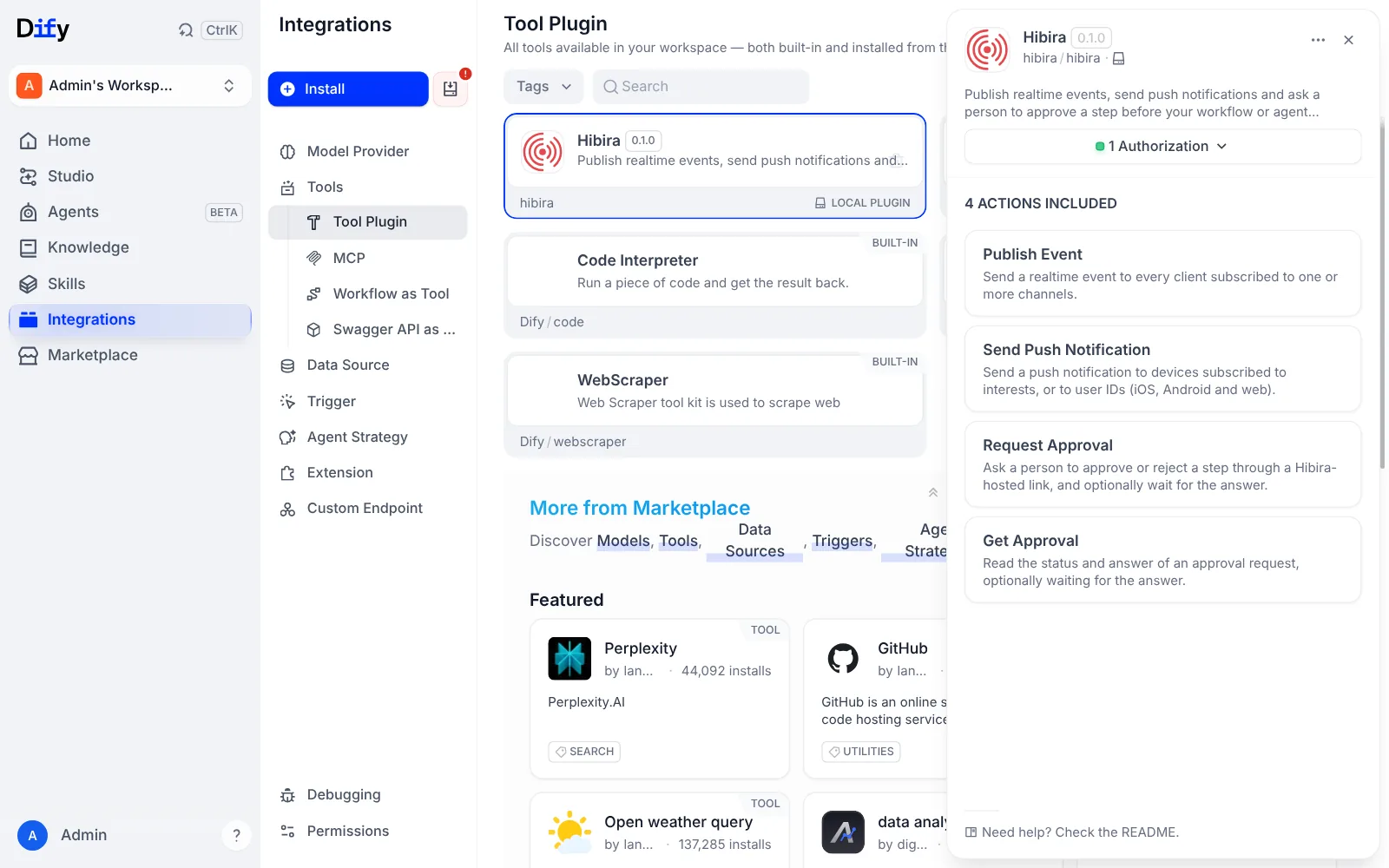
Dify Tools: the Hibira plugin is installed and authorized, with its four actions Publish Event, Send Push Notification, Request Approval and Get Approval. Set it up
Tools → Hibira → API Key Authorization Configuration
  App ID:            YOUR_APP_ID
  Key:               YOUR_APP_KEY
  Secret:            YOUR_APP_SECRET
  Push Instance ID:  optional, for push notifications
  Push Secret Key:   optional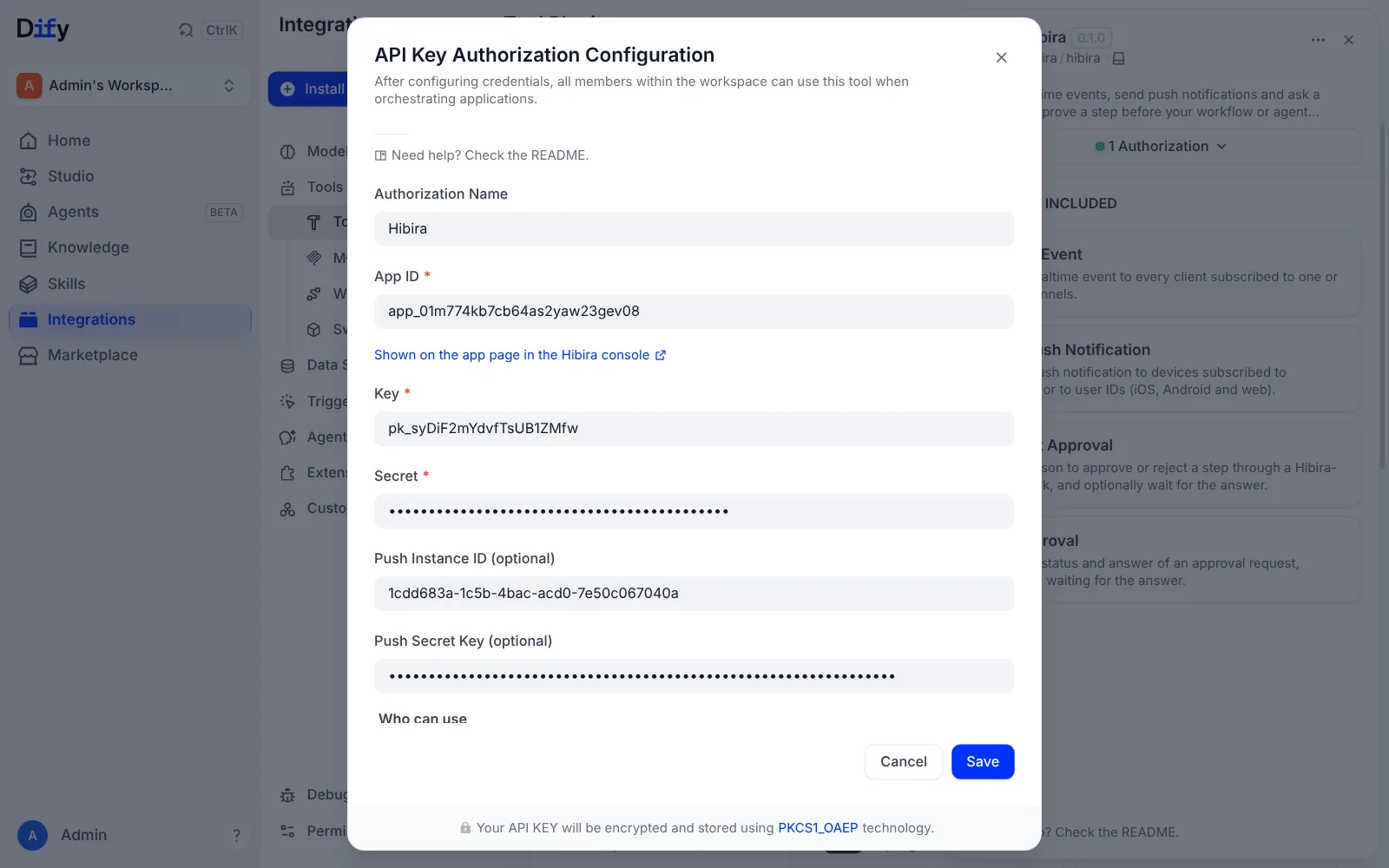
The Hibira authorization in Dify with App ID, Key and Secret filled in, and the optional Push Instance ID and Push Secret Key. Ask for approval
Start (order, amount)
→ Hibira → Publish Event
    Channels:  orders      Event:  refund-requested
→ Hibira → Request Approval
    Question:  Refund order {{order}} for {{amount}}?
    Options:   Refund, Decline
    Wait for Answer (Minutes):  5
→ IF text starts with Approved → Hibira → Send Push Notification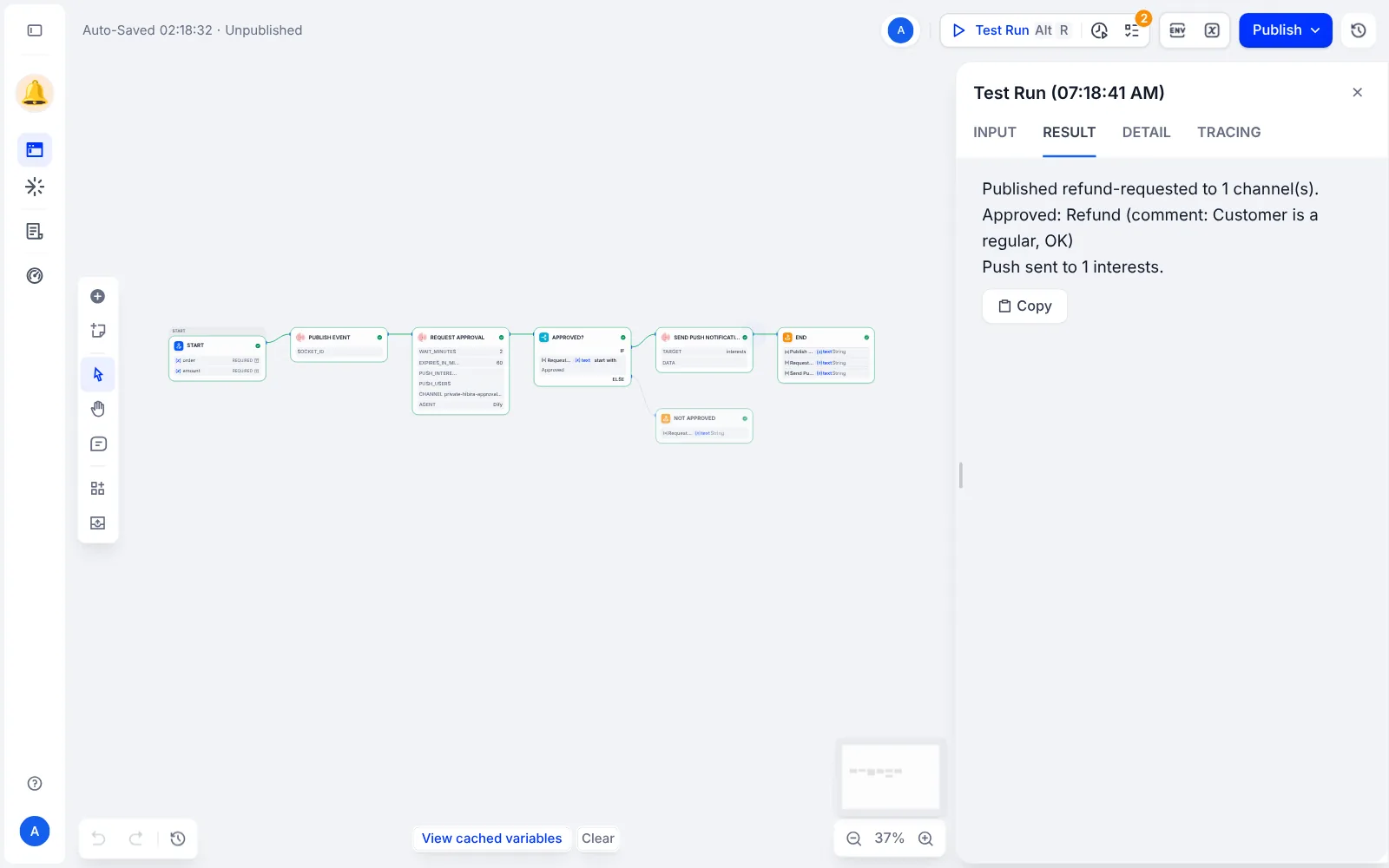
The refund workflow after a run in Dify: Publish Event, Request Approval, Approved?, Send Push Notification and End, every node green, with the result Approved: Refund.
Before you start
- Approvals work with apps created in the Hibira portal. The answer link is single-use and expires after the time you set.
- With Wait for Answer set to 0, Request Approval returns at once with the answer link in url. Send it to the person, then wait with Get Approval.
- Send Push Notification needs the Push Instance ID and Push Secret Key from the app’s Push tab.
Use the app key from your dashboard; the secret stays on your server. Channels, events and authorization endpoints work exactly as they do with Pusher. Create your free account →